Play your clips. Share your highlights.
Download clips for sharing, save reusable video layouts, or build an OBS break screen from your Twitch highlights.
Clip exports & reusable layouts
One highlight. The versions you need.
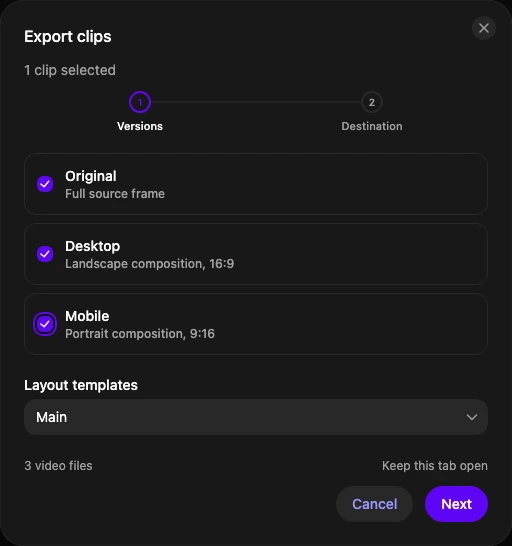
Find highlights in your clip inventory or past streams, select the clips you want, and download them. Save layouts for landscape and vertical video with your gameplay, camera, text and logo arranged for each format.
Free includes Original downloads, Desktop (16:9) and Mobile (9:16) exports. Free Desktop and Mobile exports include a Clipify watermark; Pro can remove it. Original downloads remain untouched. Choose sharing presets for YouTube, TikTok, Instagram Reels, Reddit or Discord, then upload the files yourself.
Clip playlists
Keep the moments you want to come back to.

The clutch. The running joke. The clip your chat still brings up. Put them together in a saved playlist, change the selection, and have it ready for the next stream.
Pick clips yourself or narrow the selection with filters. Requested imports let you review a fresh selection before saving it.
OBS overlays
Your break scene. With something worth watching.

Clipify plays inside a browser source in OBS or Streamlabs. Set up your BRB or Starting Soon scene once, then manage the clips in Clipify without rebuilding the scene.
Choose a playlist or clip source, save the overlay, and copy its private browser-source URL into your scene. Runner is not required.
Theme Studio
Make room for your own style.

Choose the layout, colors, typography, timers, and progress styles that fit your channel. Position the clip and channel information around the moments that matter.
Pro includes Theme Studio. Arrange the layout on desktop; adjust colors and text from your phone.
Live controls
Keep the show moving. Even from your phone.

Skip a clip, pause playback, or mute the player from a second screen. Give a trusted moderator their own access so you can step away from your desk.
Pro includes the remote panel, Twitch chat commands, channel points, and collaboration controls.
Galleries & Creator Pages
Good clips don’t have to end with the stream.
Give viewers a public place to browse your highlights. Share a gallery or Creator Page while keeping your OBS source private.
Try the gallerySelf-hosted Runner
Take the broadcast into your own hands.
Broadcast from your Windows, Linux, or macOS computer. Runner is optional, with manual broadcasting included on Free and advanced broadcasting tools on Pro.
Read the Runner setup guideReady for your next stream?
Start free with TwitchNeed a hand setting it up?
The Help Center has the full setup instructions and troubleshooting.
Getting started with Clipify